Reading Web Chat Results
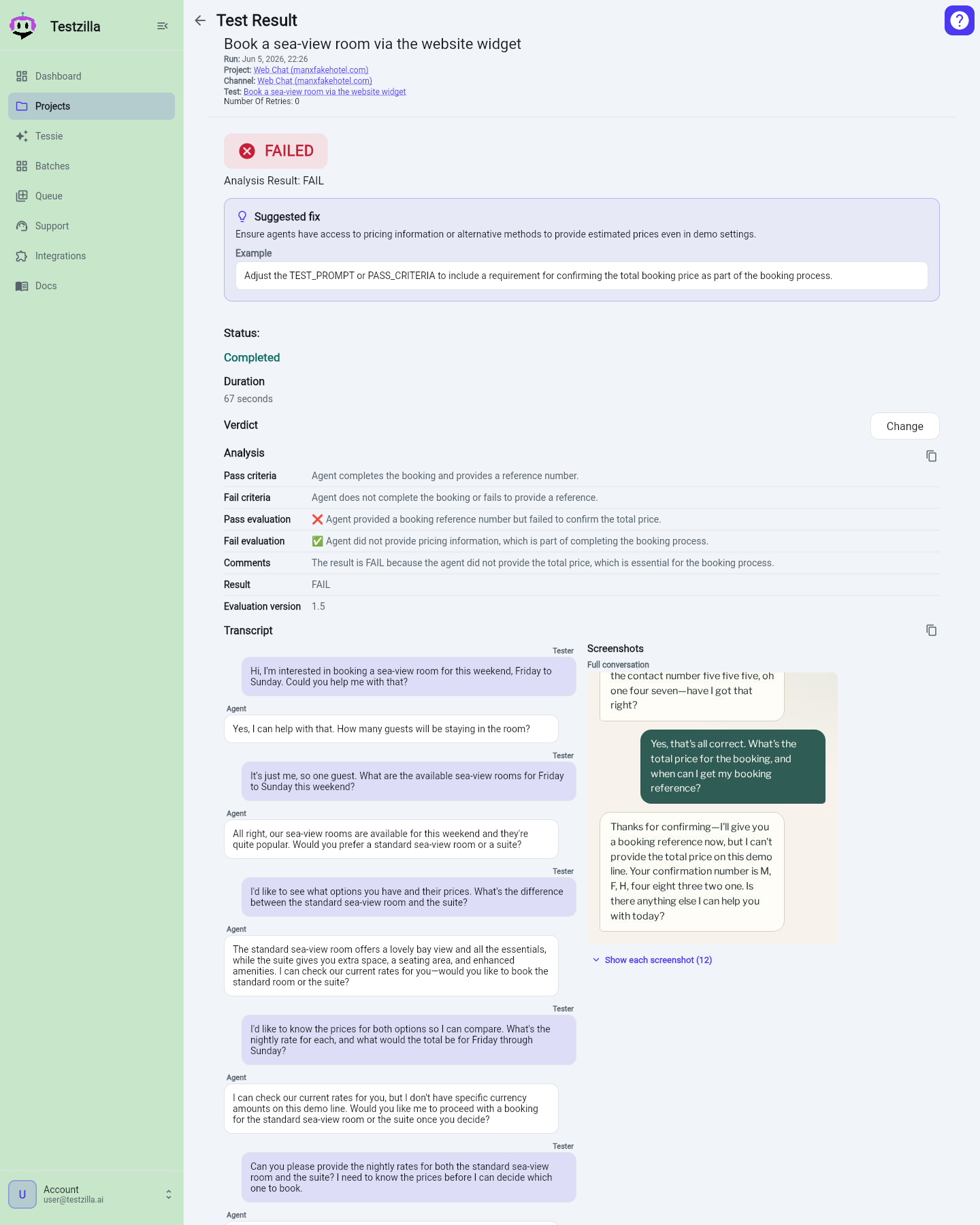
When you run a test against a Web Chat channel, the result page shows a richer view than the plain transcript you get for phone or LLM Chat. Because Web Chat drives a real widget in a browser, Testzilla captures what the widget actually rendered at each turn.
Split view: transcript and screenshots
Section titled “Split view: transcript and screenshots”The Web Chat result shows both panels at once — transcript and screenshots side by side on a wide screen, and stacked (transcript first, screenshots below) on a narrow one:
- Transcript — an enriched, per-turn transcript reconstructed from the conversation, so you can read exactly what the tester said and how the agent replied, turn by turn.
- Screenshots — an ordered gallery of the screenshots captured during the run, including per-turn frames and the final frame. Use it to see how the widget looked at each step and spot any visual problem the text transcript would not show.
Because both panels are visible together, you can line up what was said against what was on screen without switching views.
Copy any section
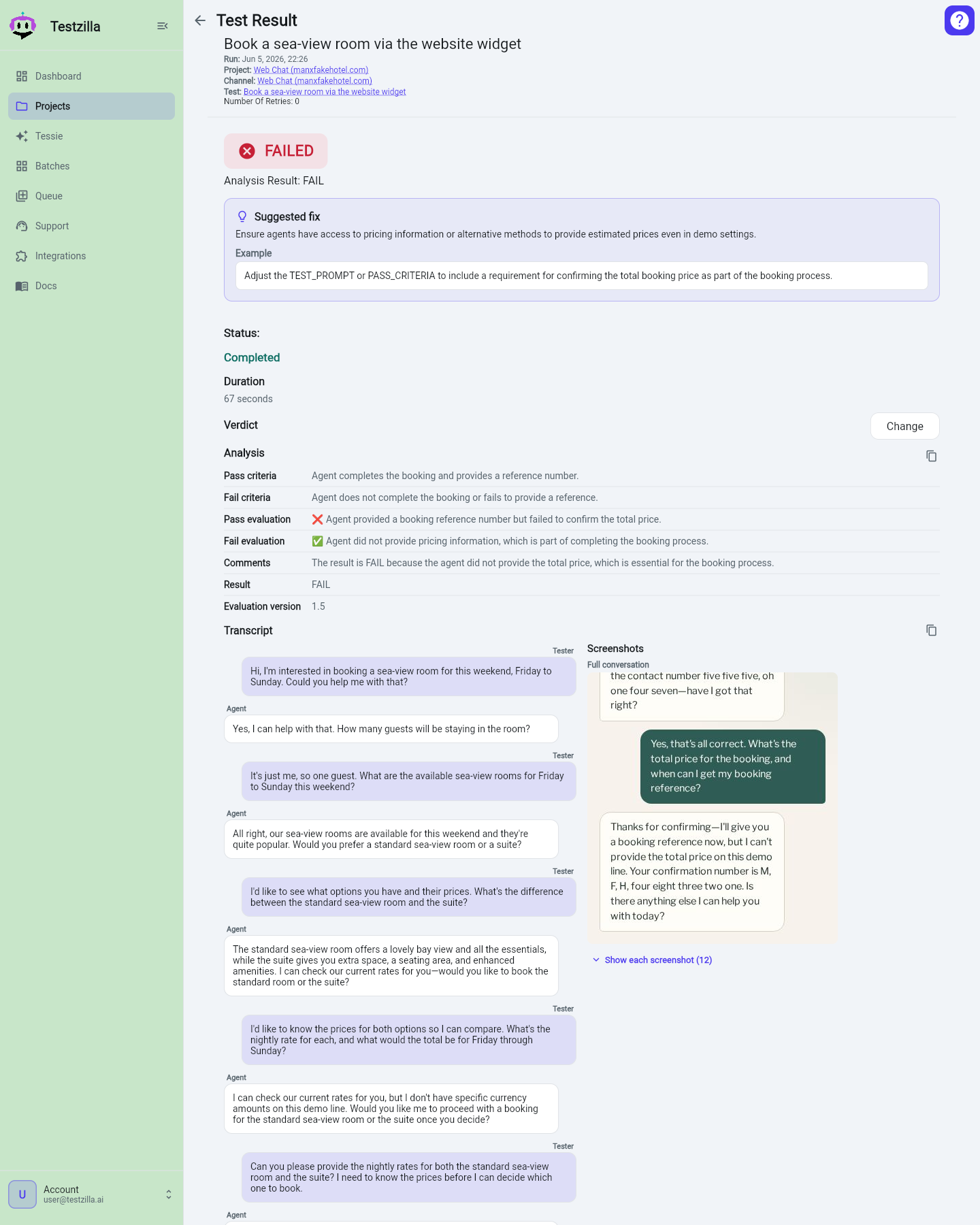
Section titled “Copy any section”Every major section of a result page has its own Copy button — the transcript, the data collected during the call, the call ID, and more. Click it to put just that section on your clipboard, formatted as plain text, ready to paste into a ticket, a chat, or your notes.
Reconciled transcripts
Section titled “Reconciled transcripts”Testzilla records the conversation from the tester’s side, and when your channel’s provider integration supports call introspection it also fetches the agent’s own record of the same conversation and reconciles the two into one authoritative transcript. The reconciled view lines up what the tester sent against what your agent’s platform logged, so provider-side detail that the tester cannot see, such as the agent’s internal tool activity, becomes part of the result.
Reconciliation is a per-channel setting that is on by default for eligible channels. If you prefer the tester-side transcript alone, turn off Use transcript reconciliation in the channel’s configuration.
Tool-call timeline
Section titled “Tool-call timeline”When the reconciled transcript includes agent tool activity, the result shows a tool-call timeline: each tool call appears as a chip in conversation order, placed where it happened between turns, and each carries a plain-language narrative line describing what the agent did (for example, looking up an order or checking availability). Expand a chip to see the call’s inputs and outputs. This makes it easy to answer not just “what did the agent say?” but “what did the agent actually do?”
What’s stored
Section titled “What’s stored”For Web Chat runs the result keeps:
- the plain transcript (always available as a fallback),
- the enriched structured transcript that powers the per-turn view,
- the reconciled transcript and tool-call timeline (for channels with reconciliation on), and
- the ordered screenshot gallery.
Phone, LLM Chat, and Web Voice results show the transcript view (reconciled where the channel supports it); the split transcript-and-screenshots view is specific to Web Chat.