File Manager
Browse, edit, upload, and manage the files behind your published test pages, with storage usage and a Trash undo.
Helper Tools is a page in the web app that groups the utilities sitting around the core testing loop. Open it from the Tools entry in the left nav. Each tool is a tile you click into.
The core of Testzilla is Project -> Channel -> Test -> Run -> Results. The Helper Tools support that loop: they host the test pages you point channels at, feed your agent live data, notify you when real calls land, and let you drive the platform from your own LLM.
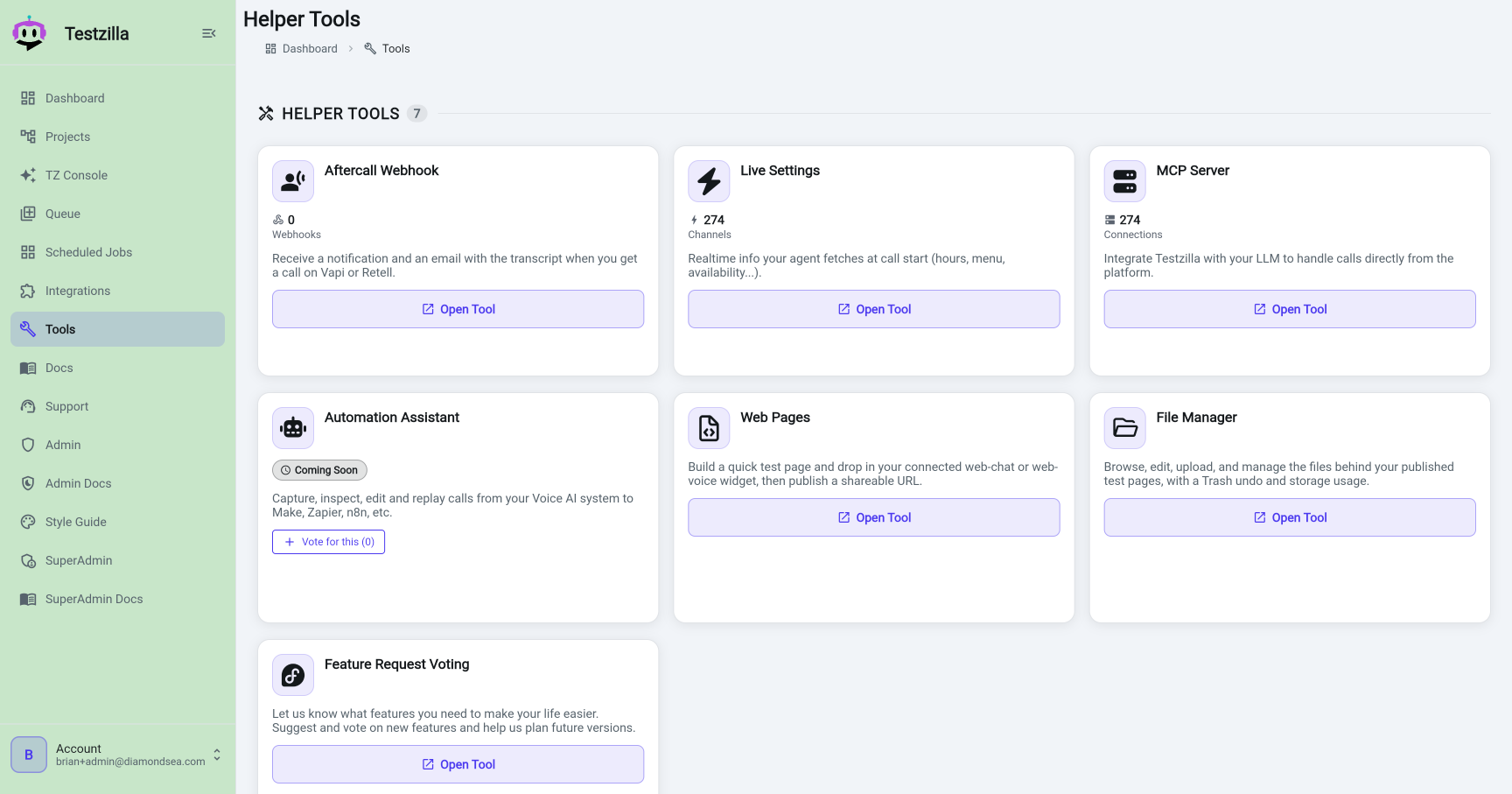
File Manager
Browse, edit, upload, and manage the files behind your published test pages, with storage usage and a Trash undo.
Web Pages
Build a quick test page, drop in a connected web-chat or web-voice widget, and publish a shareable URL.
Aftercall Webhook
Get a notification and an email with the transcript when a call lands on Vapi or Retell.
Live Settings
Realtime info your agent fetches at call start, such as opening hours, menu, or availability.
MCP Server
Integrate Testzilla with your LLM to handle calls directly from the platform.
Feature Request Voting
Suggest and vote on new features to help shape future versions.
What it is. A manager for the files behind your published test pages, plus the files your TZ Console sessions produce. It has a storage-usage header and a Trash so a delete is recoverable, and its files are grouped into a nested folder tree you can expand and collapse to any depth rather than a flat list.
Three tabs. The File Manager opens on three tabs:
When to use it. After you have published one or more Web Pages and want to tidy them up, replace an asset, edit page markup, or reclaim storage without republishing (Sites); or to review, download, and clean up the files your Console work created (Shared and Sessions).
How to use it.
Open Tools -> File Manager. The header shows your storage used against your allotment, and the tabs let you switch between Sites, Shared, and Sessions.
On Sites, browse your published sites in the folder tree. For an existing file you can edit it in place (the in-app editor is for text files; Save or Cancel), rename it, or copy its URL. To add content, use + New Site (which routes to the Web Pages new-page flow) or Upload a file — uploading mints a new single-file site, and binary files (images, audio, and similar) come in through upload.
On Shared and Sessions, files are listed under their folders in the same tree. You can download a file or delete it (with a confirm). On the Sessions tab, pick a session first, then browse that session’s files.
To remove a site, send it to Trash. This is a soft delete you confirm first.
Open the Trash view to Restore a soft-deleted site, or Delete forever to remove it permanently.
Storage past your plan’s allotment keeps working: it is a soft quota, metered daily and billed as a credit overage after a grace period. See Storage and overage billing for how the metering, grace period, and overage cap work.
What it is. A quick builder for a hosted test page. You give it a title, drop in the web-chat or web-voice widget for one of your connected channels, and publish. Testzilla serves the page at a shareable URL (on the tzusercontent.com host) with Copy and Open buttons.
When to use it. When you need a real, servable web surface hosting your chat or voice widget, so you can test the widget exactly as a visitor would load it, or share a working page with a colleague. It pairs with Test Web Chat and Test Web Voice.
How to use it.
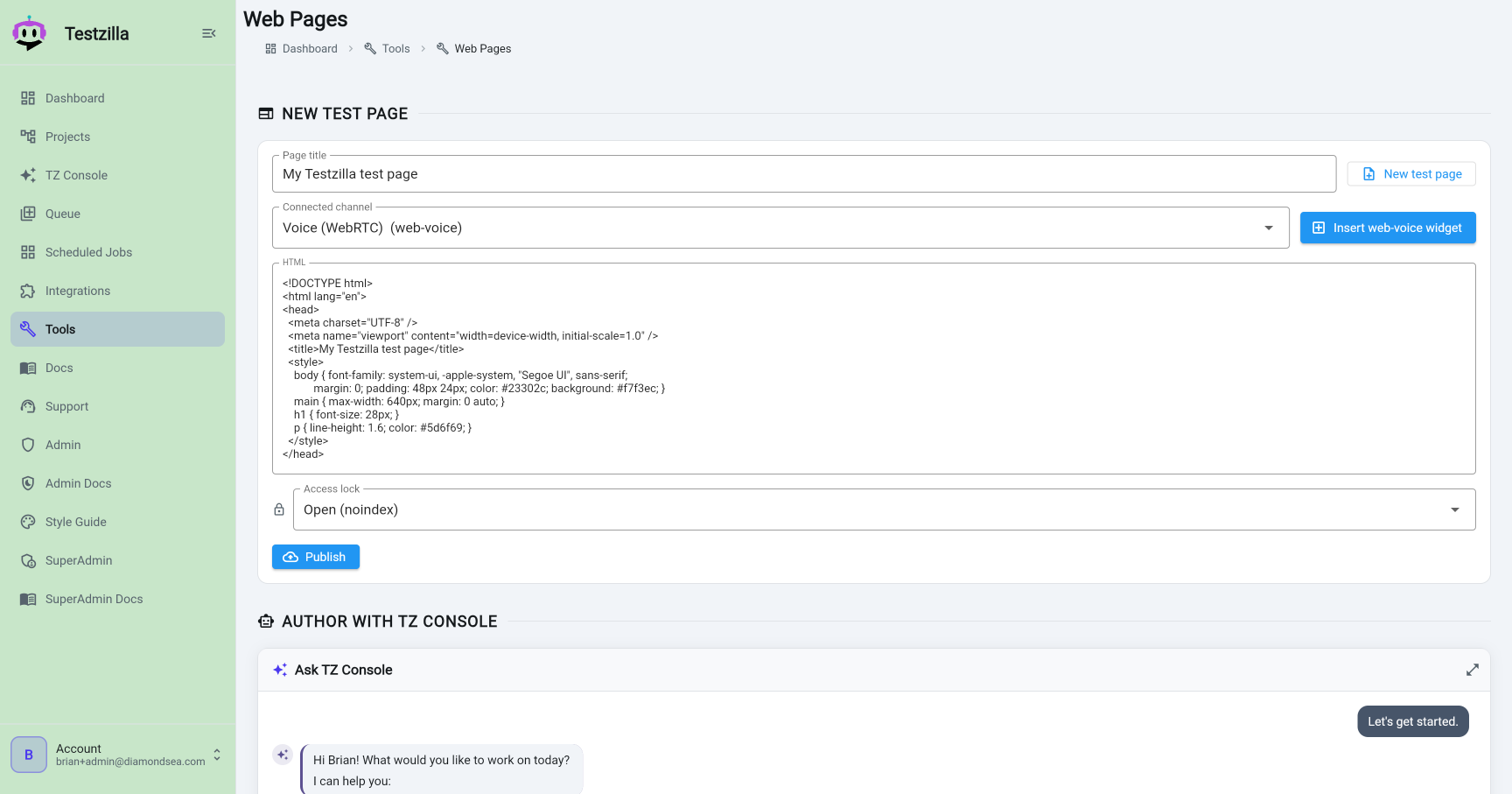
Open Tools -> Web Pages and give the page a title.
Insert your widget. Pick one of your connected web-chat or web-voice channels; the builder embeds that channel’s widget in the page.
Choose an access lock for the published page:
?k= token) that sets a cookie the first time it is opened.Publish. Testzilla returns the served URL. Use Copy or Open. For a cookie-gated site it also shows the access link that sets the cookie.
What it is. A post-call notification. When a real call lands on your Vapi or Retell agent, Testzilla can send you a notification and an email with the call transcript. You can configure more than one webhook, each with its own scope.
When to use it. To keep a human in the loop on production calls, or to fan call transcripts out to your own systems for logging, review, or follow-up, without polling anything.
How to use it.
Open Tools -> Aftercall Webhook.
Click to add a webhook. Set its scope (which agent or channel it applies to) and its delivery target.
Optionally set a signing secret so you can verify that a delivery came from Testzilla. The secret is write-only: after saving, the form shows Secret set with options to rotate or clear it, and never echoes the value back.
Save. When a call completes on the connected Vapi or Retell agent, you receive the notification and the transcript email.
What it is. A place to publish realtime information your agent fetches at the start of a call, such as today’s opening hours, the current menu, or live availability. You build a small settings page out of form fields; the agent reads it over a key-gated URL when a call begins.
When to use it. When the agent’s answers depend on data that changes and should not live in a static prompt. Update the value in Live Settings and the next call picks it up, with no prompt edit or redeploy.
How to use it.
Open Tools -> Live Settings and create a settings page, giving it a name.
Add fields with the form builder. Each field has a type: Text, Number, Toggle, Enum, List, Time range, or Long text. Mark a field public or private, and give it a helper hint or placeholder if useful.
Fill in the values (the current hours, menu, and so on). Update them whenever they change.
Each settings page has its own fetch key and a copyable, key-gated URL. Give that URL to the agent so it fetches the page at call start. You can rotate the key or delete the page.
What it is. The tile that takes you to Integrations, where MCP connectivity is set up. Connecting Testzilla to your LLM over the Model Context Protocol lets your own AI agent drive Testzilla, and lets Testzilla handle calls directly from the platform.
When to use it. When you want to operate Testzilla from your own LLM tooling (Claude Code, Cursor, and others) rather than clicking through the UI.
How to use it. MCP is configured per integration and channel on the Integrations page, not on a separate screen. For the full setup, tools list, and authentication, see Integrate via MCP.
What it is. A roadmap-voting page. Suggest features you want and vote on proposed ones. The vote counts feed into how future versions are planned.
When to use it. Whenever something is missing or awkward, tell us here rather than in a support ticket, and add your vote to features already proposed so we can prioritise by real demand.
How to use it. Open Tools -> Feature Request Voting, read the proposed features, and cast or remove your vote on each. Add your own suggestion for anything not listed.
What it will be. A way to capture, inspect, edit, and replay calls from your Voice AI system out to automation platforms such as Make, Zapier, and n8n. If you want it sooner, open Tools -> Automation Assistant and add your vote to the demand gauge.